
Download Ubuntu Server from the official website: ubuntu.com/download

How to Install It on VMware


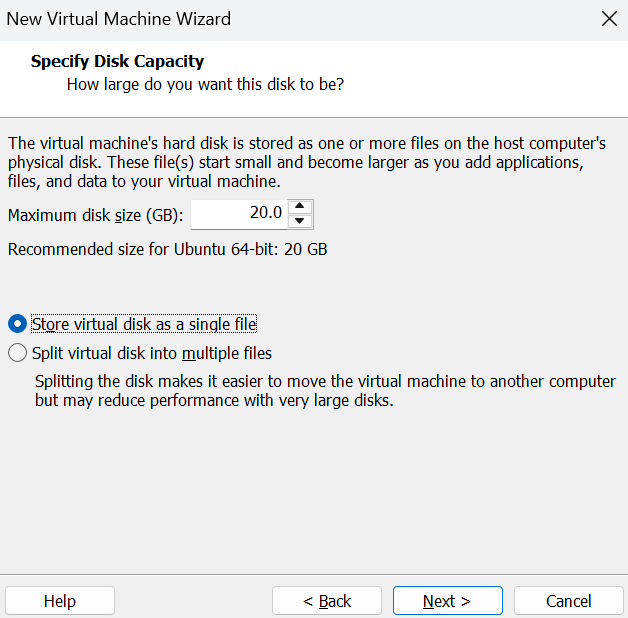


Setting It Up
For the most part, about 90% of the installation, I kept the default settings

Keyboard configuration
Please select your keyboard layout below or select “Identify keyboard” to detect your layout automatically.
English (US)

Choose the type of installation
Choose the base for the installation.
(X) Ubuntu Server
( ) Ubuntu Server (minimized)
Additional option:
( ) Search for third-party drivers

Network configuration
Configure at least one interface this server can use to talk to other machines, and which preferably provides sufficient access for updates.

Proxy configuration
If this system requires a proxy to connect to the internet, enter its details here.
Proxy address:

Ubuntu archive mirror configuration
If you use an alternative mirror for Ubuntu, enter its details here.
Mirror address:

Guided storage configuration
Configure a guided storage layout, or create a custom one:
(X) Use an entire disk
[ /dev/sda local disk 20,000G]
[X] Set up this disk as an LVM group
[ ] Encrypt the VLM group with LUKS
( ) Custom storage layout

Storage configuration
FILE SYSTEM SUMMARY

Profile configuration
Enter the username and password you will use to log in to the system. You can configure SSH access on a later screen, but a password is still needed for sudo.
Your name:
Your servers name:
Pick a username:
Choose a password:
Confirm your password:

SSH configuration
You can choose to install the OpenSSH server package to enable secure remote access to your server.
[X] Install OpenSSH server
[ Import SSH key ]

Installation complete. Login!
